- Home
- Questions
- GamBlock® for Mac Computers
- How do I install on Mac?
How do I install on Mac?
Download SurveyQuestions
Question
How do I install on Mac?Answer
GamBlock® Mac Hunter Fully Managed arrives at your physical address. No installation is required.
The instructions below are for GamBlock® Mac Hunter Standard.
1)
Your Individual Credentials
You will be emailed an individual username and password at purchase.
Store your individual credentials safely in case you are prompted to use them.
2)
Installation
2.1)
Please Note: Safari must be used.
Installation will not complete if other browsers are used.
2.2)
Download from the link below:
https://www.gamblock.com/apps/mac/Hunter.zip
2.3)
Open Terminal.
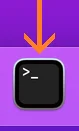
2.4)
Copy all three commands below at once, paste them into Terminal and press Enter.
sudo spctl --add ~/Downloads/Hunter.app
sudo xattr -rd com.apple.quarantine ~/Downloads/Hunter.app
open ~/Downloads/Hunter.app
2.5)
When the Terminal displays Password: 🔑 (image of a key), enter your Mac login password normally, even though no password field or cursor will appear while you type. Then press enter.
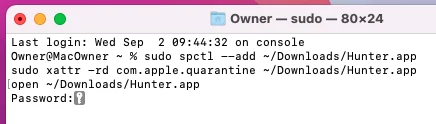
If you're prompted again, simply enter your password a second time and press Enter.
If you can't see the image of a key above, your email application may be blocking external content. You can usually display it by selecting "Allow external content," "Display images," or a similar option, depending on your email provider.
2.6)
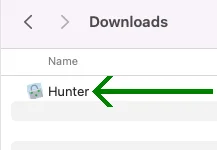
Open Hunter, if it has not already opened.
2.7)
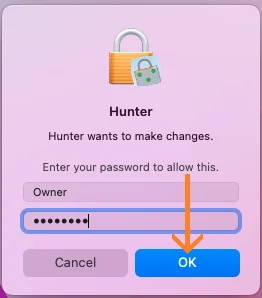
Enter the password you use to log into your Mac User Account and select “OK”.
2.8)
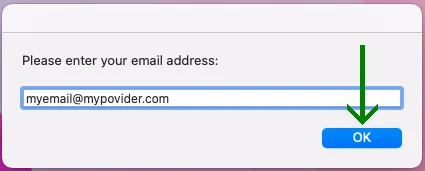
Enter your email address and select “OK”.
2.9)
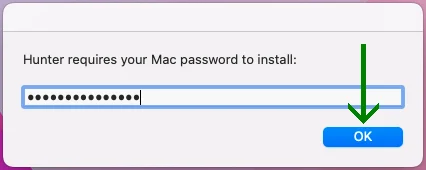
Enter the password you use to log into your Mac User Account and select “OK”.
2.10)
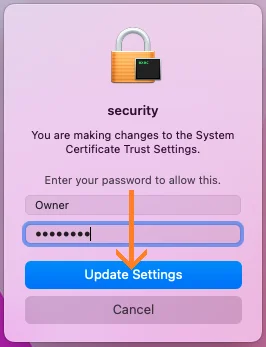
Enter the password you use to log into your Mac User Account and select “Update Settings”.
2.11)
Select “OK”.
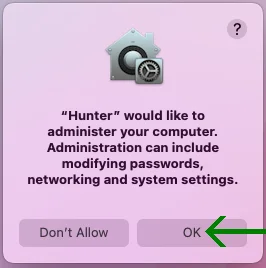
2.12)
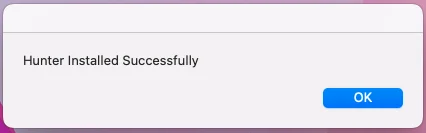
Gambling is blocked.
3)
Protection Period
3.1)
You may be asked to enter a username and password.
If so, use your individual credentials.
3.2)
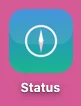
A Status app will appear on your Desktop.
3.3)
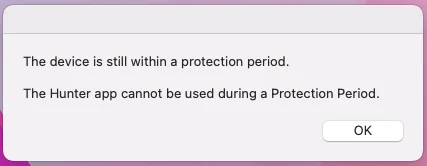
The Hunter app cannot be used during a Protection Period.
4)
End of Protection Period
4.1)
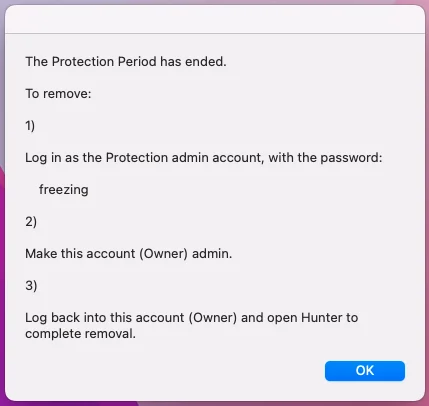
The password in the image below is an example. Your password will be different.
4.2)
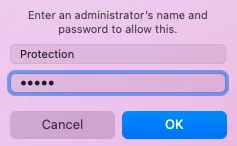
Enter "Protection" as the username and the password displayed in the previous step.
4.3)
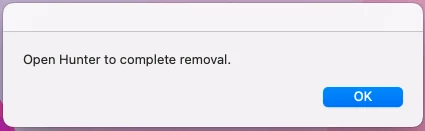
Select "OK".
4.4)
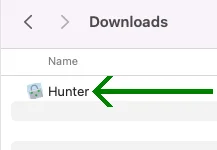
Open Hunter.
4.5)
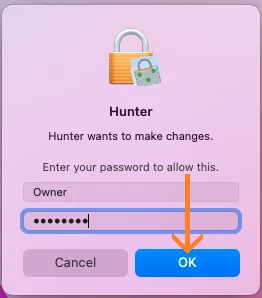
Enter the password you use to log into your Mac User Account and select "OK".
4.6)
Enter your email address and select "OK".
4.7)
GamBlock® is removed.