GamBlock® for Windows Installation
GamBlock® Corporate customers please note: GamBlock® Corporate offers different installation methods to suit particular requirements. Please contact us to discuss the installation method that is best for your company or organization.
The instructions below are for Microsoft Edge. We recommend using Microsoft Edge for downloading GamBlock® or Microsoft Internet Explorer on older systems. Please Note: All browsers are blocked from gambling once GamBlock® is installed.
Transaction ID
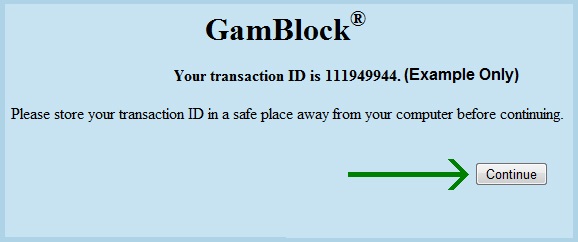
After you have completed the WorldPay transaction process, you will be provided with a Transaction ID.
Select "Continue".
Begin Download
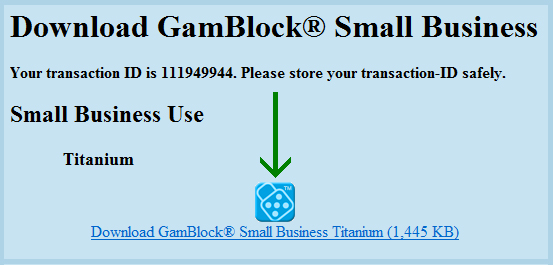
We have removed the automatic download of GamBlock® due to the amount Pop-up Blockers preventing this feature. Select the image or the link in order to download GamBlock®.
The example given is for GamBlock® Small Business Platinum. The details of your transaction may be different.
File Download
The File Download will begin. Select "Run".

The download will continue.

Please wait while a security scan is performed.
The security scan has been completed.
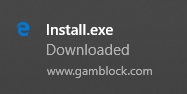
Begin Installation
Select "Extract".

If at any point during installation, the GamBlock® window is hidden behind another window, select the GamBlock® icon on the taskbar to display the GamBlock® window.
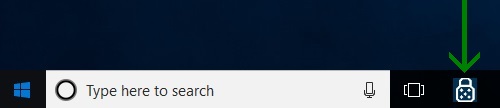
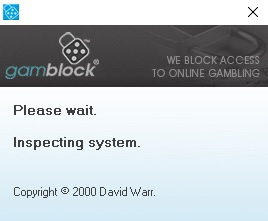
GamBlock® inspects your system.
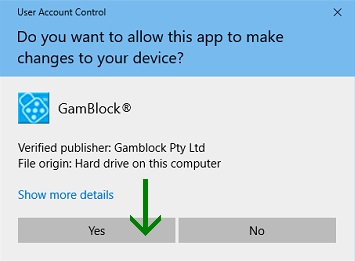
Verify Publisher
Select "Yes".
If you ever receive a link that claims to be from Gamblock Pty Ltd and displays a different publisher, select "No".
Continue Installation
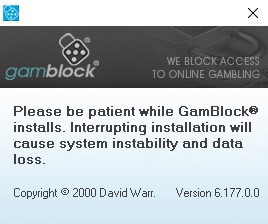
Please be patient. GamBlock® is a heavyweight solution that has been improving since 2000 and so it takes some time to install.
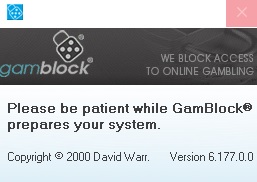
Choose a language and select "OK".

GamBlock® will not release passwords or change installation choices upon request under any circumstances.
Select "Protect: Myself" or "Protect: Another person", create a password, read the agreement and click "Next".

Do not swicth off your device.
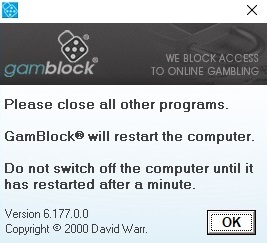
Close all other programs and select "OK". Do not switch off your device until is has restarted and GamBlock® Features appears.
After your device has restarted, select "Yes"
GamBlock® Features
If you do not want GamBlock® Features to show when your device starts, deselect "Show at start up". You may wish to move GamBlock® Features from your desktop to another location, such as a USB drive, so that others do not see it.
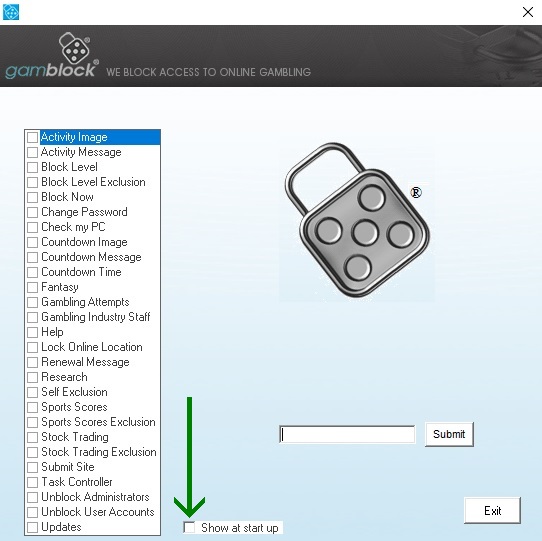
GamBlock® Features can be opened from your desktop or from where you store it and can be configured for your specific needs.

Complete Installation
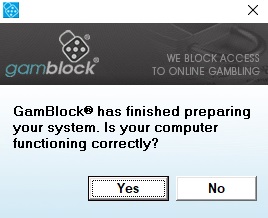
After a while, the window below will appear. Select "Yes" to complete installation.
Registration
You must register GamBlock® in order to keep using it.
Until you register, the window below will appear at start-up. Select "Click here".
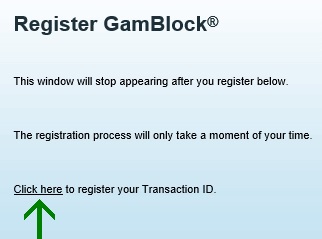
You will be redirected to a new page. Select "click here" again.

Select "Run".

Select "Yes"
Enter your Transaction ID, email and select "Submit"
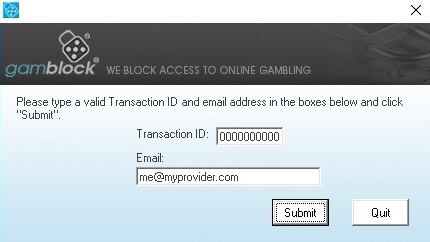
Wait a few moments.
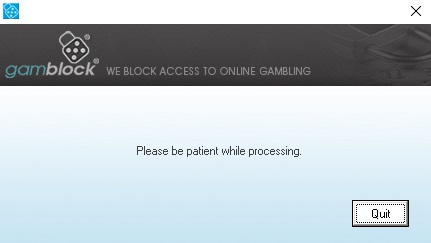
Registration is complete.
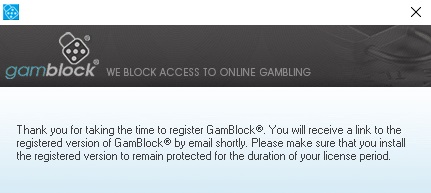
You will receive a link by email. Check your spam / junk folder if it does not arrive. Click on the link in your email. You will be redirected to a new page. Select "click here".
Follow the steps under the heading “File Download” above. This time you will not be prompted for a language or to protect yourself / another person as these choices have already been made.
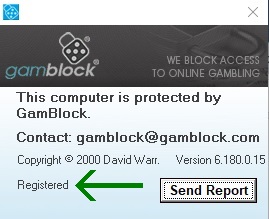
When a gambling site or app is blocked, "Registered" now appears in the GamBlock® window, which means that you are protected for the duration of your protection period.